DMSS/Live View
This guide will show you the general controls of DMSS Live View.
Instructions
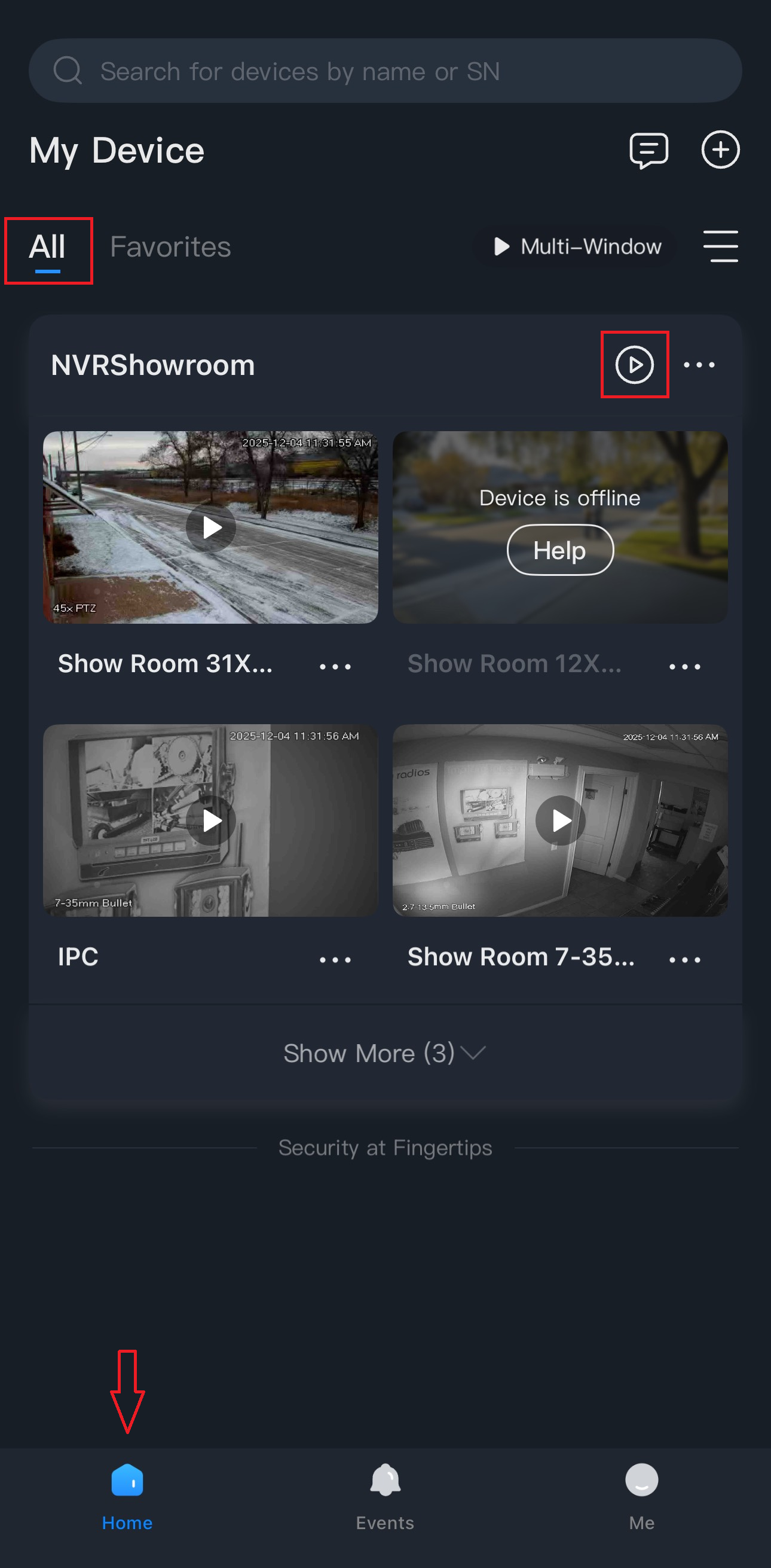
On the Home tab under All devices, press the Play button for a live view.
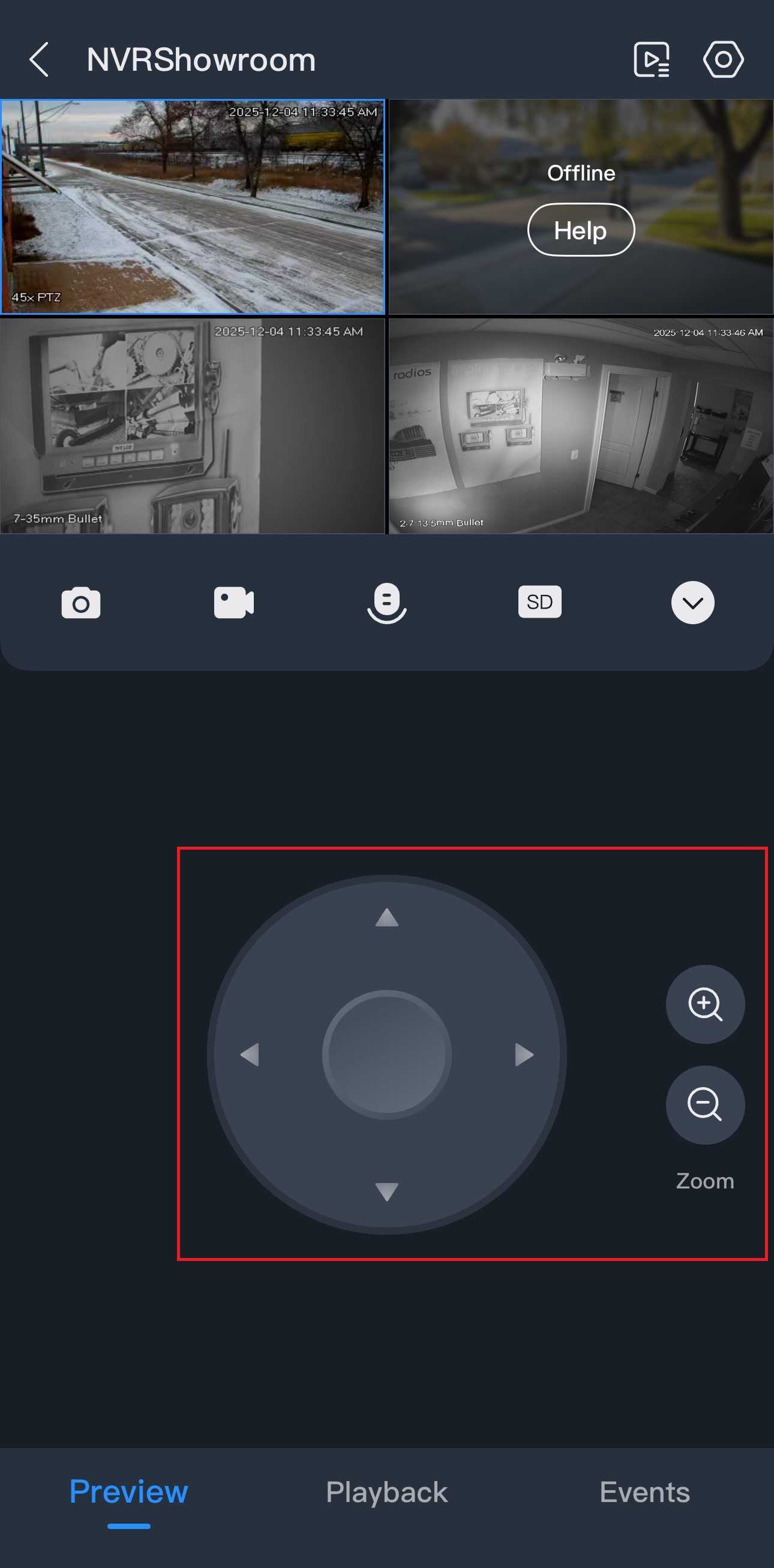
Tap once on the camera you’d like to control. Double tap to make it full screen. Double tap again to exit out of full screen.
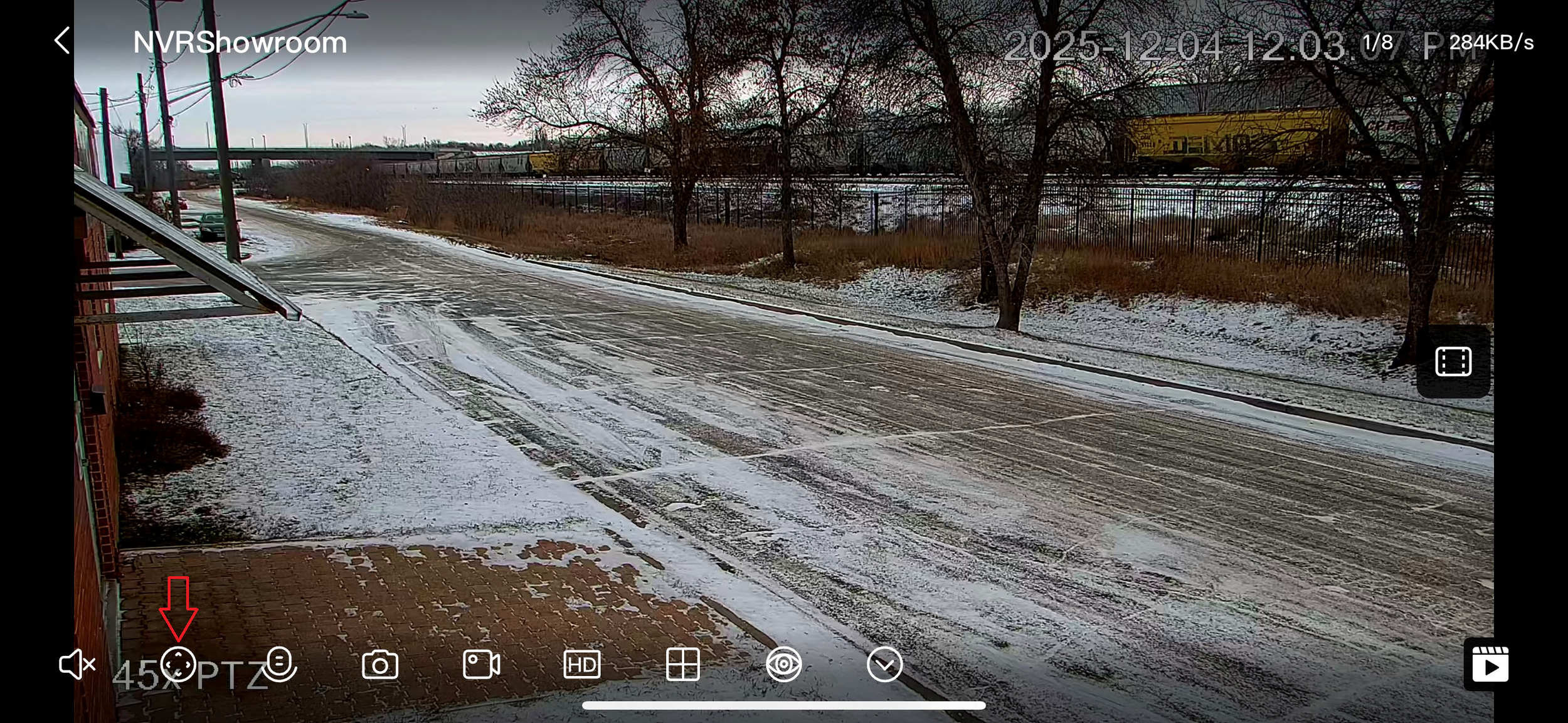
On landscape, tap once to reveal the controls. Press the joystick icon for PTZ controls.
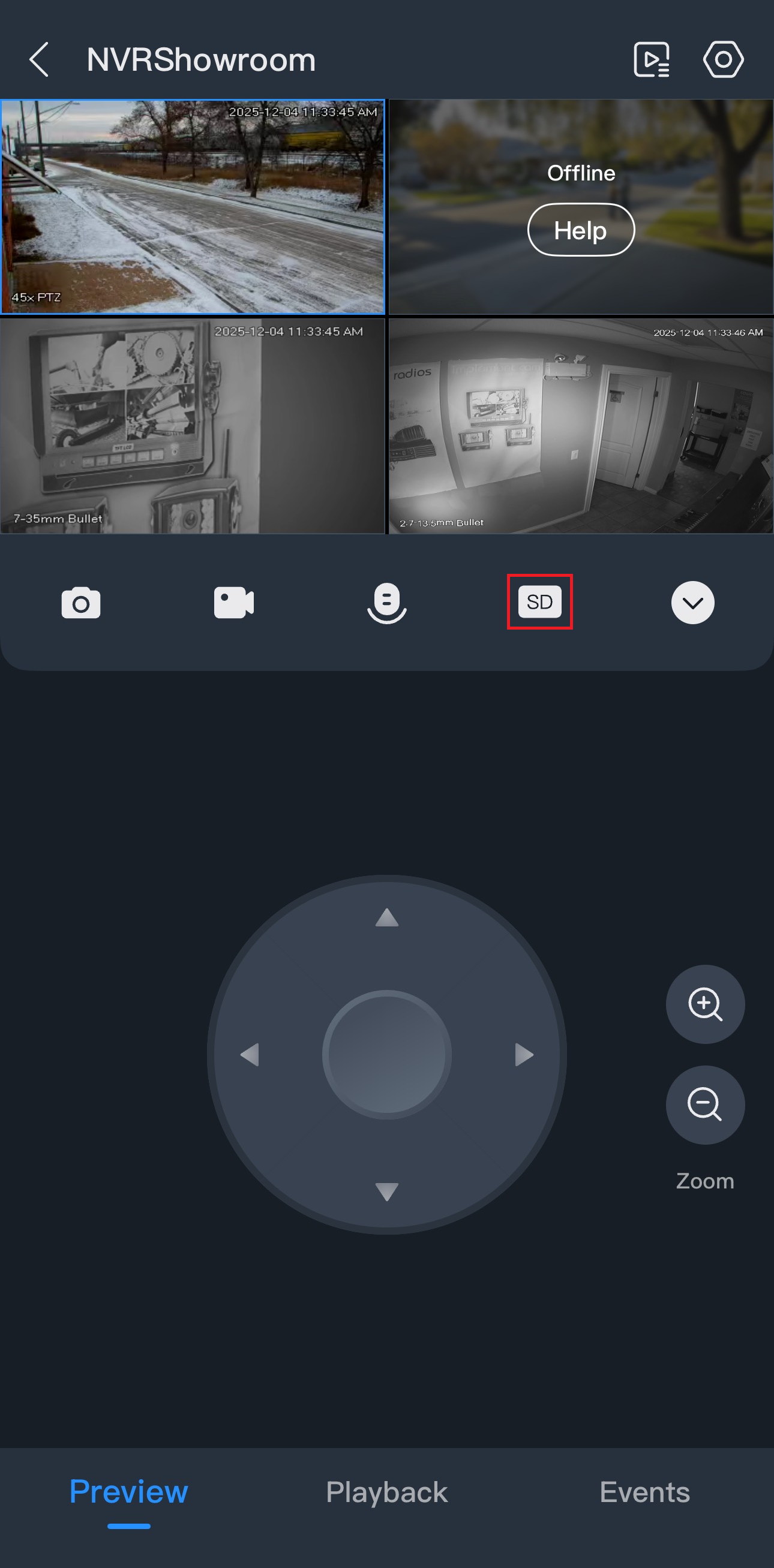
Tap on SD to switch it to HD for a better quality. You may notice a PTZ delay on HD as it has more data usage.
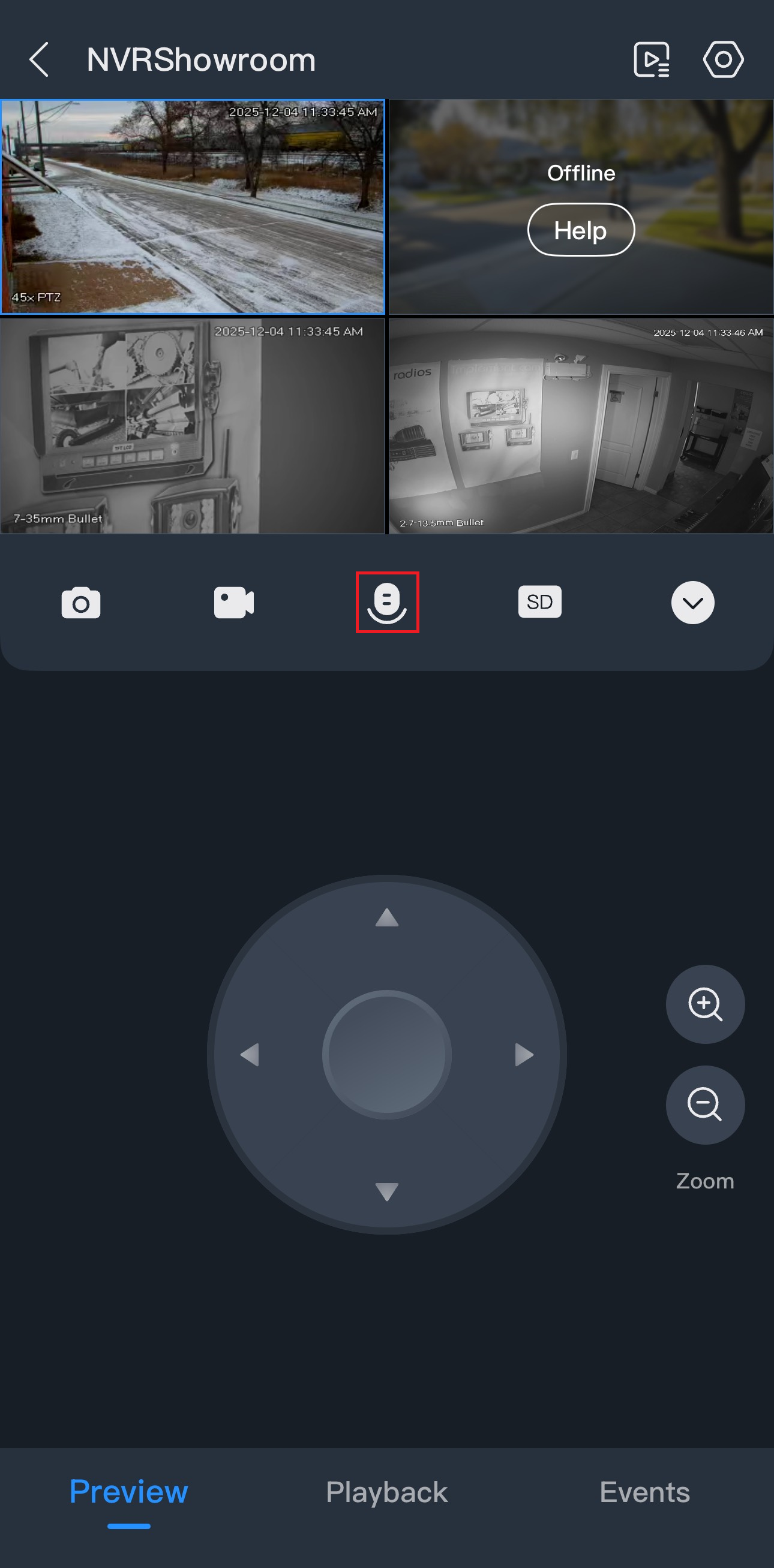
Microphone button is for cameras with a built-in or external mic & speaker.
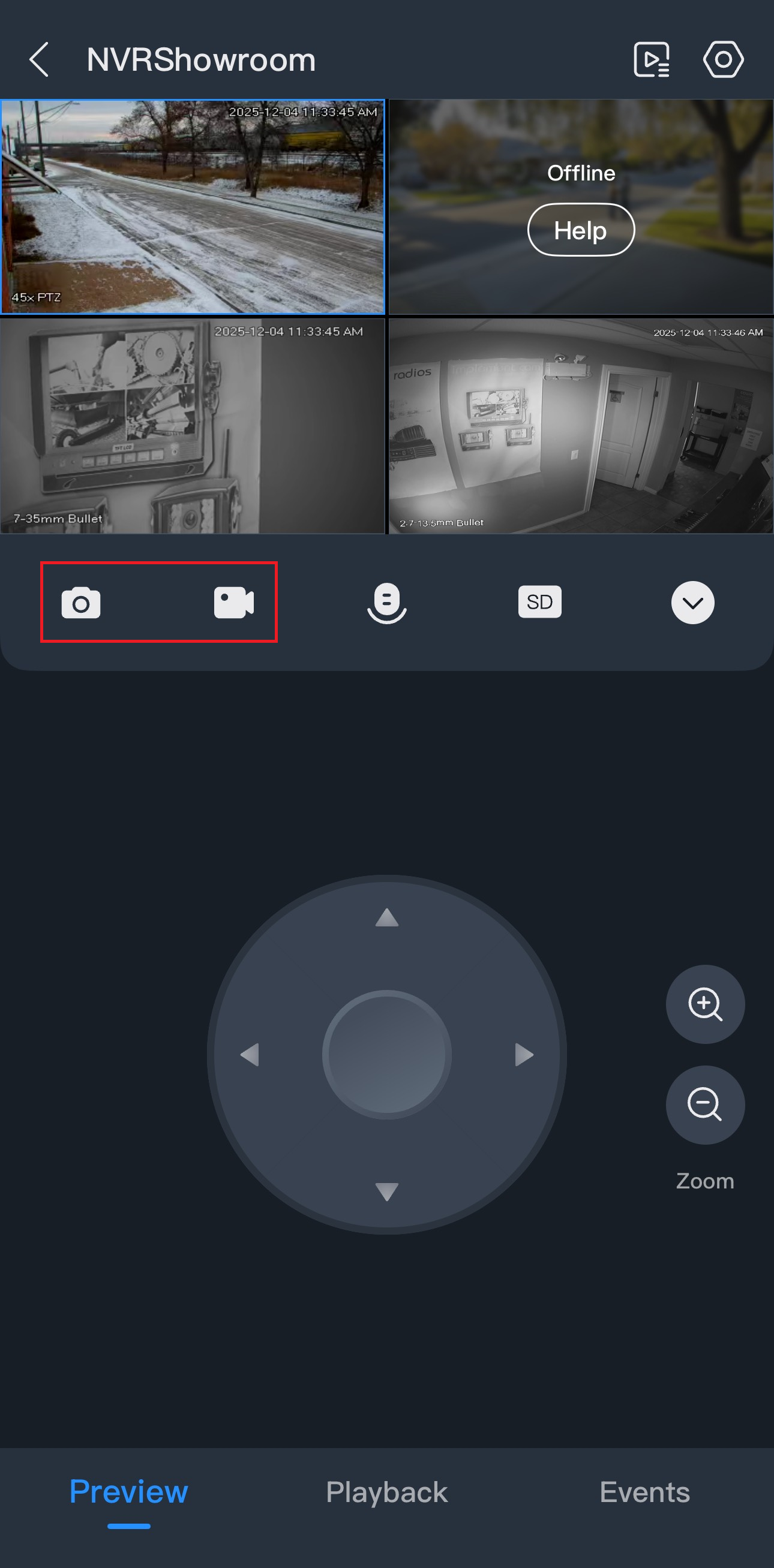
Camera icon on the left is for screenshots.
Video icon on the right is for screen recording.